Resources
Best Soccer TV HD Streaming Quality Settings
Choose the best Soccer TV HD streaming quality for your screen and connection, with settings for phones, TVs, mobile data, and matchday stability.
Table of Contents
Jump to any section in this guide
Table of Contents
Jump to any section in this guide
The best quality setting is not the highest one; it is the highest one your connection sustains for ninety minutes without collapsing at the worst moment.
This guide matches quality choices to screens and connections so your stream stays stable from kick-off to the final whistle.
If your problem is constant freezing rather than picture softness, start with our buffering fix guide and return here afterwards.
The Soccer TV HD APK page brings together the download, the features and the latest version details in one place.
How Quality Settings Work
Quality settings trade picture detail against data and stability. Higher settings carry more detail per second and demand a faster, steadier connection.
Football punishes weak connections more than most content because the camera moves constantly and the grass exposes compression immediately.
Quality affects:
- Picture sharpness
- Data consumption per match
- Stability on busy networks
- Battery and heat on phones
Quality for Phones
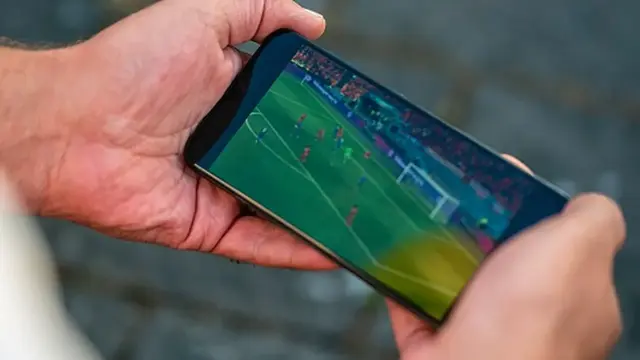
On a phone screen, a medium setting usually looks identical to the highest during live play, while using far less data and holding steady on mobile networks.
Reserve the top phone setting for short clips and highlights, not full matches on the move.
Phone guidance:
- Medium for full matches
- High for highlights and clips
- Lower when traveling
- Step down if the picture pulses
Quality for TV and Firestick
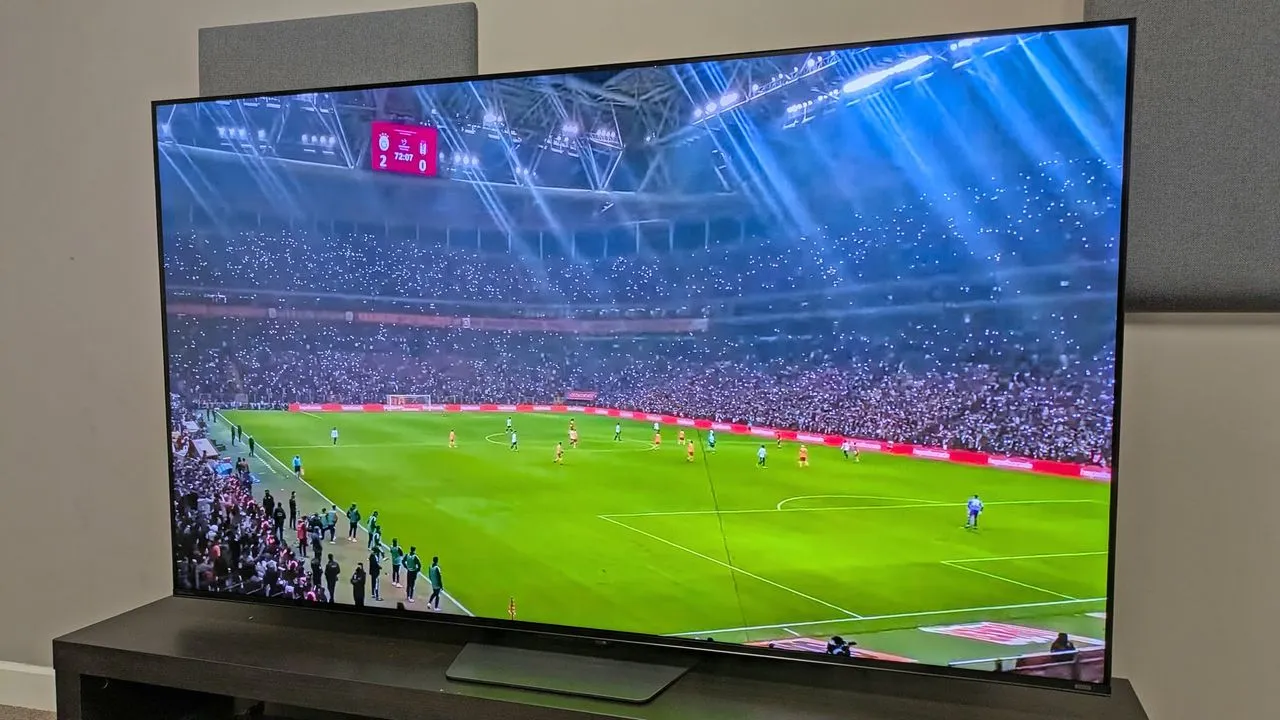
Big screens reveal every shortcut, so televisions earn the highest setting your wired or strong Wi-Fi connection can hold.
Test the top setting during a quiet moment before matchday; a stream that survives a full half at peak hour is ready.
TV guidance:
- Highest stable setting
- Wired connection preferred
- Test before matchday
- Standard TV picture mode
Quality on Mobile Data
A full match at top quality can consume several gigabytes. On mobile data, a deliberate medium setting protects both the stream and your plan.
Our data usage tips give the per-match numbers for each level.
Mobile data rules:
- Medium setting for matches
- Wi-Fi for top quality
- Watch the plan balance
- Avoid auto-highest defaults
When to Lower Quality Deliberately
Lower quality before the stream fails, not after: derby day, finals, and congested evening networks all reward a pre-emptive step down.
A slightly softer picture that never freezes beats a sharp picture that dies in the eighty-ninth minute, every single time.
Step down early when:
- The network is congested
- It is a final or derby
- Many devices share the connection
- The first half already flickered
Testing Your Best Setting
Find your best setting with a low-stakes match: start at medium, step up at half-time, and note where stability breaks.
Write the result down per device; phones, tablets, and TVs each settle at different levels on the same network.
A simple test:
- Start at medium
- Step up at half-time
- Note any freezing
- Save the winner per device
Final Thoughts
Set quality by evidence from your own network, not by the maximum on the menu, and matchday streams become boringly reliable.
Test once, save the winner for each device, and stop thinking about settings altogether.