Resources
How to Cast Soccer TV HD to Your TV with Chromecast
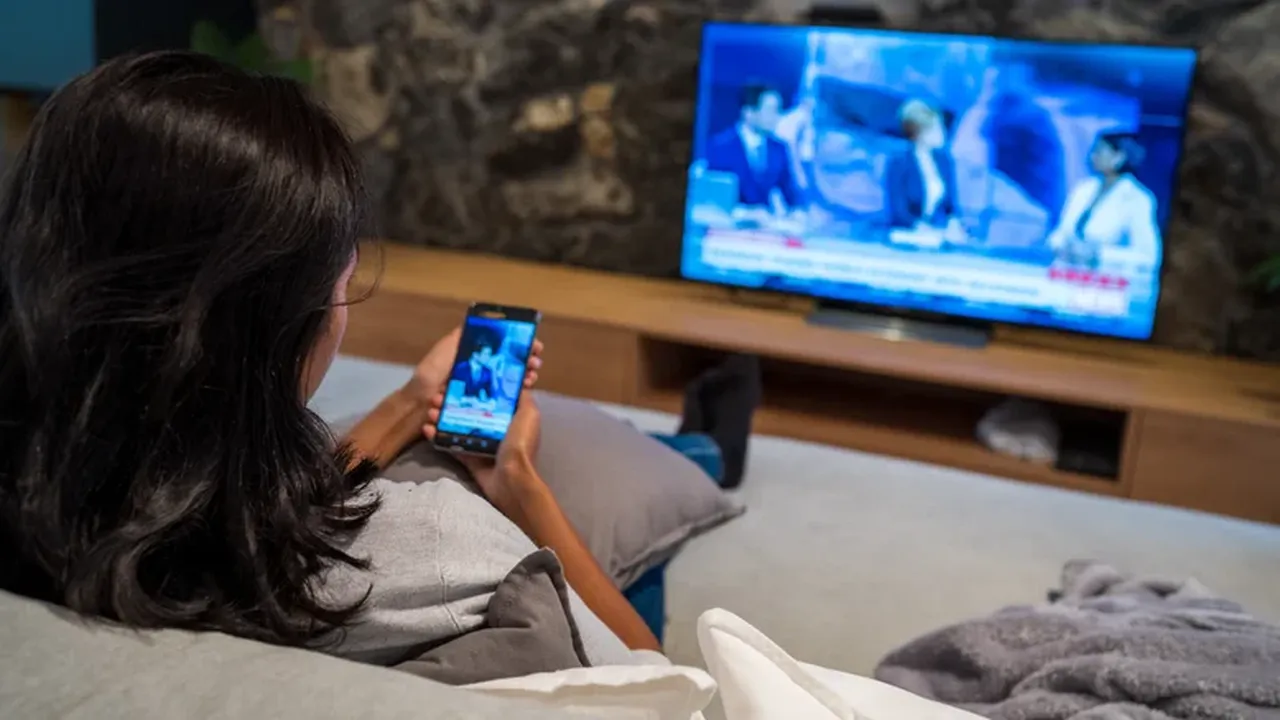
Cast Soccer TV HD from phone to television with Chromecast or screen mirroring, including setup steps and fixes for lag and missing devices.
Table of Contents
Jump to any section in this guide
Table of Contents
Jump to any section in this guide
Your phone finds the match; your television should show it. Casting bridges the two in seconds and turns any TV with a Chromecast, or any smart TV with mirroring, into a football screen.
This guide covers both methods plus the lag fixes that matter for live sport.
For a permanent setup instead, compare our Android TV and Firestick guide.
You can get the file and the full feature list from the Soccer TV HD APK Download page.
Casting vs Mirroring for Football
Casting streams the video directly to the TV while your phone becomes a remote; mirroring copies your phone screen, notifications and all.
Live football favors casting: better quality, less lag, and a phone free for team news.
Choose deliberately:
- Casting: direct stream, phone free
- Mirroring: whole screen copied
- Casting wins on lag and quality
- Mirroring suits unsupported cases
Setup Requirements
Phone and Chromecast or TV must share one Wi-Fi network, same name and same band where routers split them. This causes nearly every 'device not found' failure.
Update the app and restart both devices once before a big match if casting has been flaky.
Before kick-off:
- Same Wi-Fi network and band
- App and TV updated
- Devices restarted if flaky
- Router within sensible range
Casting Steps
Start the match on your phone, tap the cast icon in the player or your phone's quick settings, and choose the television. Playback continues on TV while the phone becomes your remote.
Set quality after casting settles; the TV's bigger screen may justify a step up if the network allows.
Cast in order:
- Start playback on phone
- Tap cast and select the TV
- Let the connection settle
- Adjust quality for the big screen
Reducing Casting Lag
Lag grows with distance and network traffic. Move closer to the router, clear competing downloads, and prefer the 5 GHz band at short range.
A wired Chromecast or TV connection, where supported, gives the steadiest live picture.
Cut the lag:
- Shorten router distance
- Clear competing traffic
- Use 5 GHz nearby
- Wire the TV side if possible
Mirroring Steps and Limits
Enable mirroring on the TV, open your phone's screen-mirroring feature, select the TV, and rotate to landscape.
Expect slightly softer quality and visible notifications; enable do-not-disturb before kick-off.
Mirroring basics:
- Enable TV mirroring input
- Connect from phone settings
- Landscape for full screen
- Do-not-disturb on
Troubleshooting Casting
Device missing: recheck the shared network. Picture stuttering: reduce distance or quality. Sound out of sync: restart the cast session rather than the whole setup.
Our buffering guide covers the stream-side faults that casting cannot fix.
Fault order:
- Shared network first
- Distance and traffic second
- Restart the cast session
- Then check the stream itself
Final Thoughts
Casting done right is a thirty-second routine: same network, cast icon, settle, adjust quality.
Prepare it once before a big match and Soccer TV HD on the big screen becomes your default, not your experiment.