Resources
How to Watch Soccer TV HD on PC and Windows
Watch Soccer TV HD on a Windows PC or laptop through an Android emulator, with setup steps and performance settings for smooth football streaming.
Table of Contents
Jump to any section in this guide
Table of Contents
Jump to any section in this guide
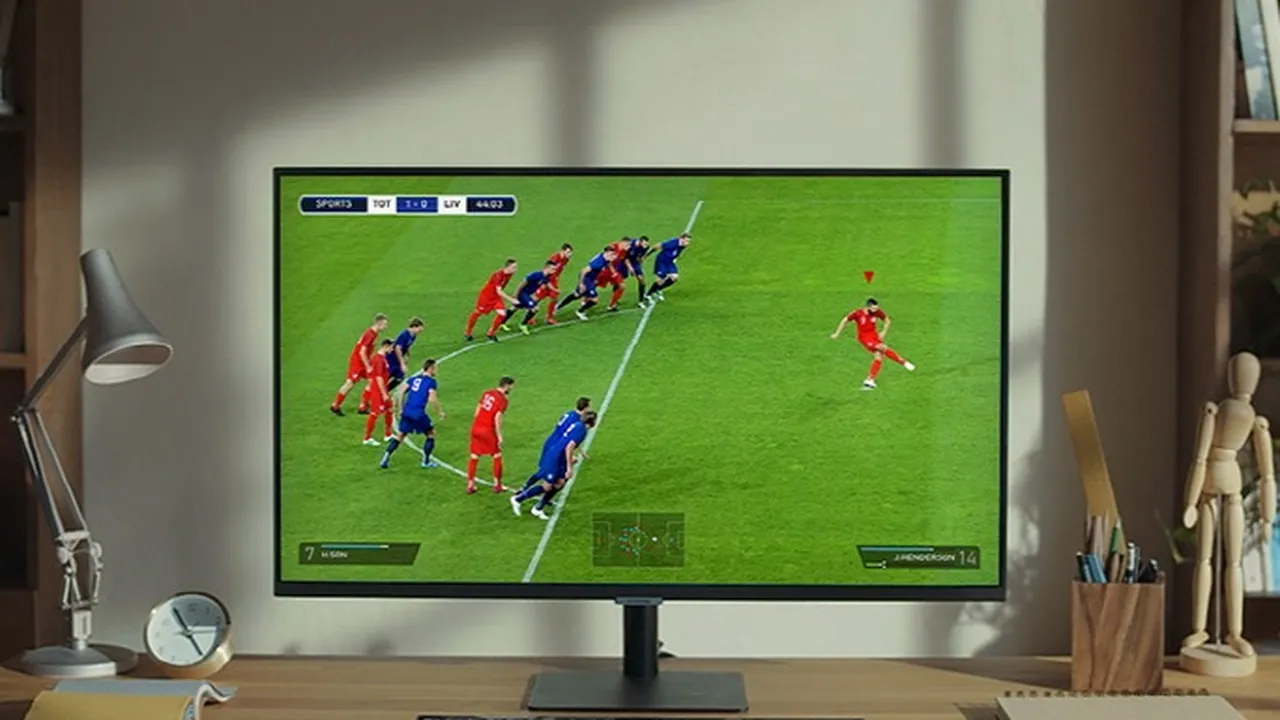
A PC monitor is often the best unused football screen in the house. With an Android emulator, Soccer TV HD runs on Windows for desk viewing, second-screen duty, or a full match setup.
This guide covers emulator choice, installation, and performance settings.
It complements our multiple devices guide, where the PC's role in the household is set out.
You can get the file and the full feature list from the Soccer TV HD APK Download page.
Why Watch on PC
PC viewing suits students, office workers, and anyone whose desk is their natural habitat. A monitor plus decent speakers beats a phone on every measure except portability.
It also makes a superb second screen beside a television during simultaneous fixtures.
PC strengths:
- Large monitor, good sound
- Desk comfort for full matches
- Easy multitasking
- Ideal second screen
Choosing and Installing an Emulator
Use a well-known Android emulator from its official website, enable virtualization in your PC settings where possible, and install it like any Windows program.
Modified emulator builds from file sites are the main risk in this whole process; avoid them entirely.
Emulator rules:
- Official website downloads only
- Virtualization enabled
- Reputable, well-known names
- No modified builds
Installing Soccer TV HD Inside
Open the APK with the emulator or use its built-in install option, allow the permissions Android requests, and launch from the emulator home screen.
The flow mirrors a phone exactly, as described in our installation guide.
Install flow:
- Open APK in emulator
- Allow install permissions
- Launch from home screen
- Test a stream before matchday
Performance Settings
Allocate the emulator at least two cores and 4 GB of RAM if your PC allows, and close heavy programs during matches.
Wired internet suits a desk setup perfectly and removes Wi-Fi from the equation.
Performance setup:
- Two or more cores allocated
- 4 GB RAM or more
- Heavy apps closed
- Wired connection preferred
Full Screen and Sound
Use the emulator's full-screen mode for matches and windowed mode for desk multitasking. PC speakers or a headset both outclass phone audio comfortably.
Keyboard shortcuts for volume and full screen are worth learning before kick-off.
Viewing polish:
- Full screen for matches
- Windowed for desk work
- Speakers or headset
- Learn the shortcuts early
PC vs Other Screens
Keep the hierarchy honest: television for shared headline games, PC for personal and second-screen viewing, phone for mobility.
Most fans end up using the PC far more than expected once it is set up, especially for midweek fixtures.
Screen hierarchy:
- TV: shared headline matches
- PC: personal and second screen
- Tablet: travel and rooms
- Phone: checks and away days
Final Thoughts
An emulator turns the PC you already own into a proper football screen in about fifteen minutes of setup.
Install from official sources, allocate enough resources, and midweek football gets a permanent desk-side home.